Mod Marketplace
Browse and install mods from Modtale directly in your panel.
Overview
The Mod Marketplace integrates with Modtale to provide access to mods for your Hytale servers. Install, update, and manage mods without leaving the panel.
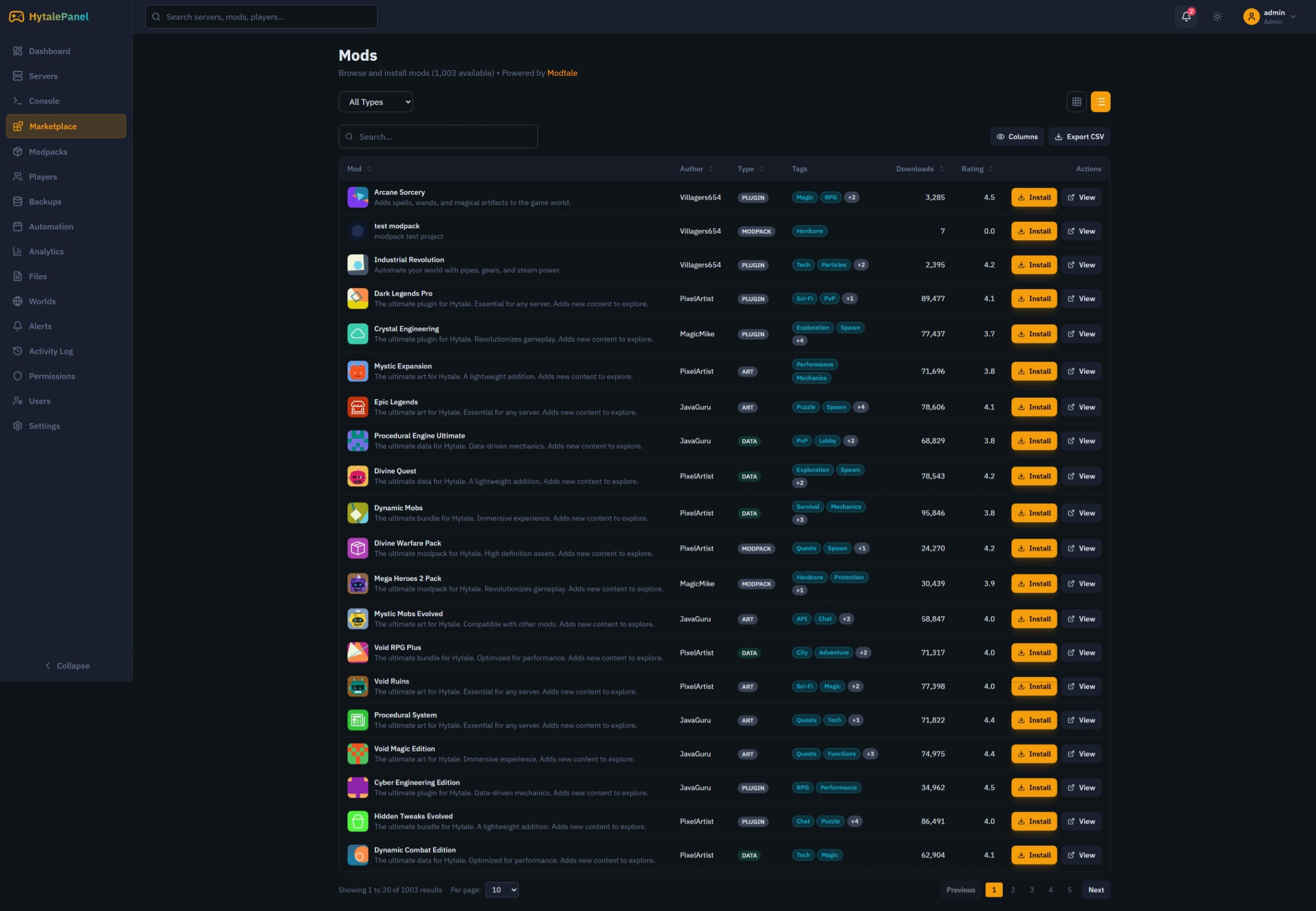
Browsing Mods
Accessing the Marketplace
- Navigate to Marketplace in the sidebar
- Browse the available mods
- Use filters and search to find specific content
Filter Options
- Type: Plugins, Data Assets, Art Assets, World Saves
- Sort By: Downloads, Rating, Title, Author
- Search: Search by name or description
Mod Information
Each mod displays:
- Name and author
- Download count
- User rating
- Description
- Version information
- Tags
Installing Mods
One-Click Installation
- Find the mod you want to install
- Click the Install button
- Select the target server
- Wait for installation to complete
Installation Queue
When installing multiple mods:
- View the installation queue
- Track progress for each mod
- Cancel pending installations
Managing Installed Mods
Viewing Installed Mods
- Go to your server’s detail page
- Click on Installed Mods
- View all mods installed on that server
Uninstalling Mods
- Find the mod in your installed list
- Click the Uninstall button
- Confirm the removal
API Configuration
Setting Up Modtale API
To use the marketplace, configure your Modtale API key:
- Go to Settings
- Enter your Modtale API key
- Save the configuration
Getting an API Key
Visit Modtale to create an account and generate an API key.
Best Practices
- Test First: Try mods on a test server before production
- Check Compatibility: Verify mod compatibility with your server version
- Backup Before Installing: Always backup before adding new mods
- Read Reviews: Check ratings and reviews before installing