Automation
Automate server tasks with flexible scheduling.
Overview
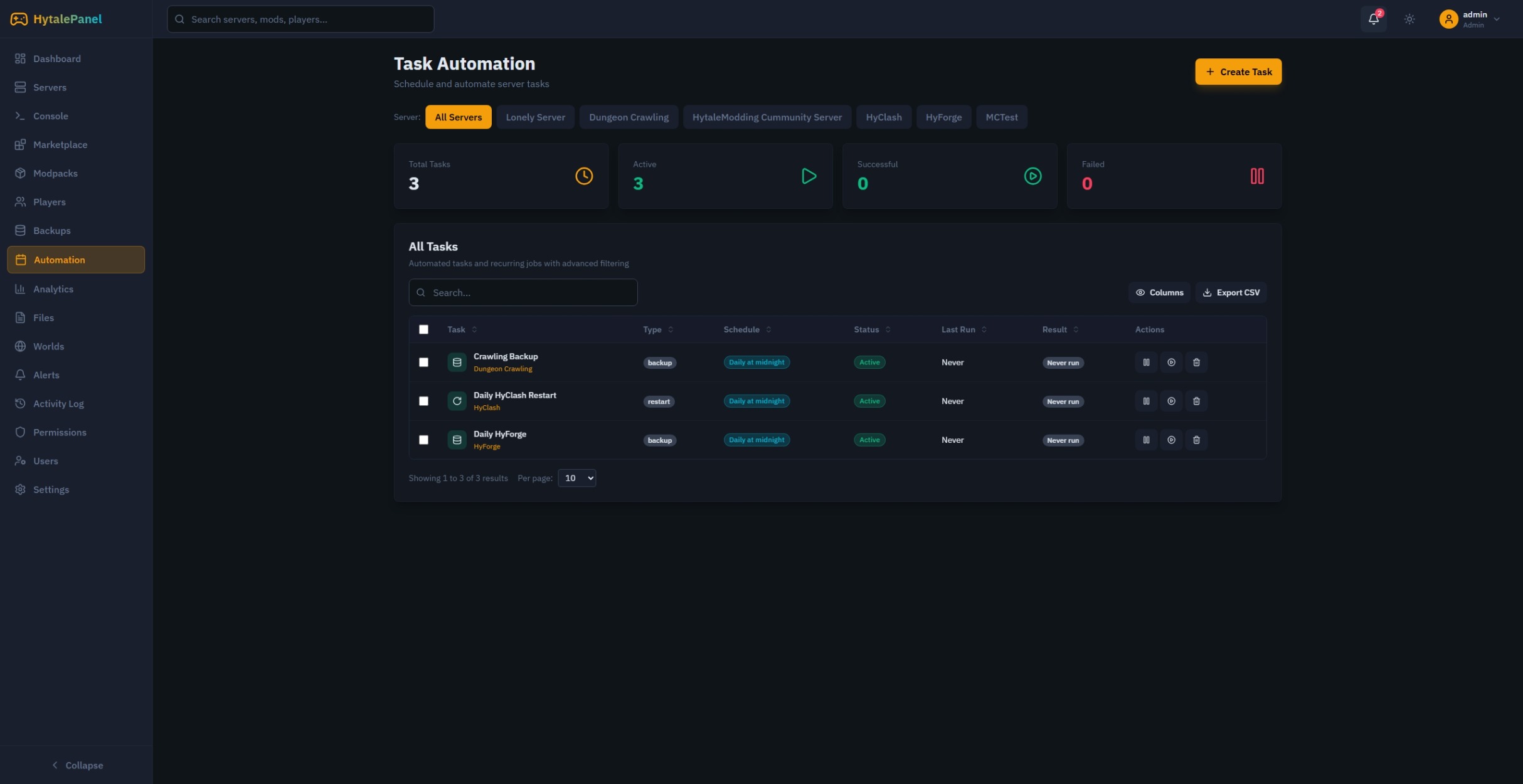
The automation system allows you to schedule recurring tasks using cron expressions. Automate backups, restarts, commands, and more.
Task Types
Backup
Automatically create server backups on a schedule.
- Configure backup retention
- Set compression options
- Exclude specific files
Restart
Schedule server restarts for maintenance.
- Graceful shutdown
- Player warning messages
- Automatic startup
Start/Stop
Schedule server start and stop times.
- Energy saving during off-hours
- Scheduled maintenance windows
Command
Execute custom server commands.
- Broadcast messages
- Run maintenance scripts
- Trigger in-game events
Creating Tasks
Step-by-Step
- Navigate to Automation
- Click Create Task
- Select the task type
- Choose the target server
- Configure the schedule
- Save the task
Schedule Presets
Quick scheduling options:
- Every 15 minutes
- Every 30 minutes
- Hourly
- Every 6 hours
- Daily at midnight
- Daily at noon
- Weekly
Custom Cron Expressions
For advanced scheduling, use cron syntax:
┌───────────── minute (0 - 59)
│ ┌───────────── hour (0 - 23)
│ │ ┌───────────── day of month (1 - 31)
│ │ │ ┌───────────── month (1 - 12)
│ │ │ │ ┌───────────── day of week (0 - 6)
│ │ │ │ │
* * * * *
Examples:
0 */6 * * *- Every 6 hours0 0 * * *- Daily at midnight0 4 * * 0- Weekly on Sunday at 4 AM*/30 * * * *- Every 30 minutes
Managing Tasks
Task Controls
- Enable/Disable: Toggle task execution
- Run Now: Execute immediately
- Edit: Modify task settings
- Delete: Remove the task
Execution History
View task execution history:
- Last run time
- Success/failure status
- Error messages
- Run count
Best Practices
- Stagger Tasks: Don’t schedule multiple heavy tasks at the same time
- Test First: Run tasks manually before enabling automation
- Monitor Results: Check execution history regularly
- Backup Before Restart: Schedule backups before automated restarts
- Off-Peak Hours: Schedule intensive tasks during low-traffic periods