Backups
Protect your server data with automated and manual backups.
Overview
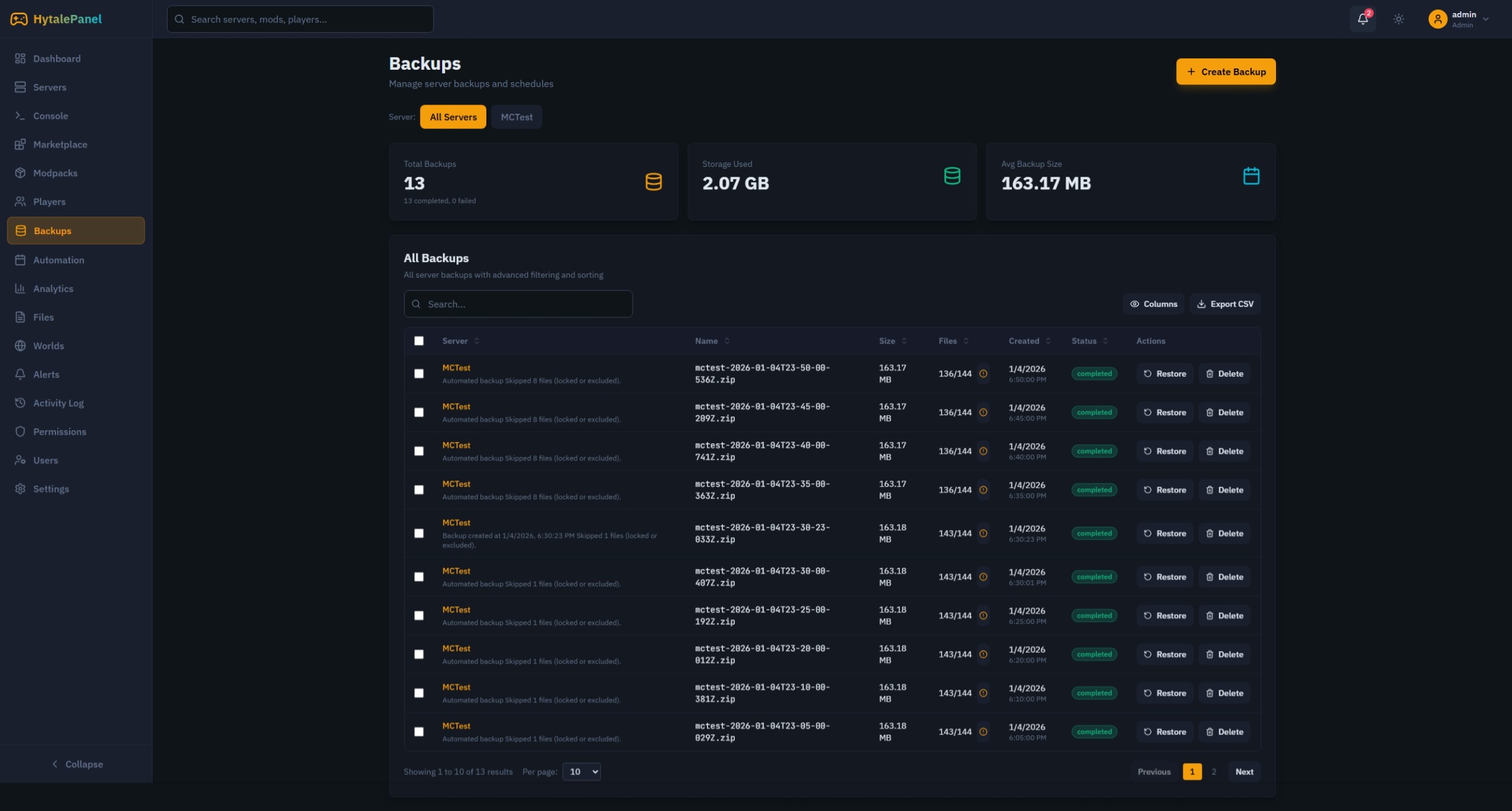
The backup system provides comprehensive data protection for your servers. Create manual backups on-demand or schedule automatic backups with flexible retention policies.
Creating Backups
Manual Backups
- Navigate to Backups in the sidebar
- Select your server from the dropdown
- Click Create Backup
- Wait for the backup to complete
Backup Contents
Each backup includes:
- World data
- Server configuration files
- Installed mods
- Player data
Automated Backups
Setting Up Automation
- Go to Automation
- Click Create Task
- Select Backup as the task type
- Configure the schedule
- Save the task
Schedule Options
Use cron expressions or presets:
- Every hour
- Every 6 hours
- Daily at midnight
- Custom cron expression
Managing Backups
Viewing Backups
The backup list shows:
- Backup name and date
- File size
- Status (completed, failed)
- Server association
Filtering Backups
- Filter by server
- Filter by date range
- Search by name
Backup Statistics
View aggregate statistics:
- Total backup count
- Total storage used
- Average backup size
Restoring from Backup
Restore Process
- Find the backup you want to restore
- Click the Restore button
- Confirm the restore action
- Wait for completion
Warning: Restoring a backup will overwrite current server data. Always stop the server before restoring.
Partial Restoration
For advanced users, you can manually extract specific files from backups located in the data/backups directory.
Best Practices
- Regular Backups: Schedule daily backups at minimum
- Test Restores: Periodically verify backup integrity by restoring to a test server
- Offsite Storage: Consider copying backups to external storage
- Retention Policy: Configure automatic deletion of old backups to manage storage
- Pre-Update Backups: Always backup before server updates or major changes